Mac guide
How to convert Markdown to PDF on Mac
Print a rendered preview for free, use Pandoc for automation, or choose a native exporter for controlled pages and themes.
A Markdown file must be rendered before it becomes a readable PDF. The right method depends on whether you need one quick copy, a repeatable command, or a polished document with predictable page breaks.
Short answer
Choose by the job, not the file extension
- Fastest free methodRender the file, press Command-P, then Save as PDF
- Best for scriptsPandoc with a configured PDF engine
- Best for visual page controlA native exporter with preview, themes and pagination
Avoid uploading confidential notes to an online converter unless its privacy model is acceptable for that document. Every method below can run locally on the Mac.
Method 1 - free
Print a rendered Markdown preview to PDF
- Open the .md file in an app that renders Markdown.
- Choose File > Print, or press Command-P.
- Open the PDF menu in the print dialog and choose Save as PDF.
- Choose a filename and location, then save.
The PDF inherits the preview's fonts, spacing and print stylesheet. This is the simplest route for one document, but a screen-oriented preview can produce awkward page breaks. Apple's Save a document as a PDF guide documents the same system print flow.
- SetupNo extra PDF tool; a Markdown renderer is still required
- ControlPaper size, orientation and scale from the print dialog
- Best forA quick one-off PDF
Method 2 - open source
Convert Markdown with Pandoc
For a repeatable command or build script, Pandoc converts Markdown directly to a named PDF:
pandoc notes.md -o notes.pdfPandoc's default PDF route requires a LaTeX engine. Its official manual also documents other PDF engines and intermediate output when you need to debug or customize the result.
- SetupPandoc plus a compatible PDF engine
- ControlTemplates, variables, filters and command-line automation
- Best forBatch conversion, CI and reproducible documents
Method 3 - visual
Preview and export with PX7 Markdown Typeset
PX7 Typeset opens the local source, shows the rendered document, and exports a paginated A4 PDF without a separate Pandoc or LaTeX installation. Choose Manuscript, Modern or Academic; YAML front matter becomes the title block, while headings stay with introductory paragraphs and tables or code blocks are kept from splitting across page breaks.
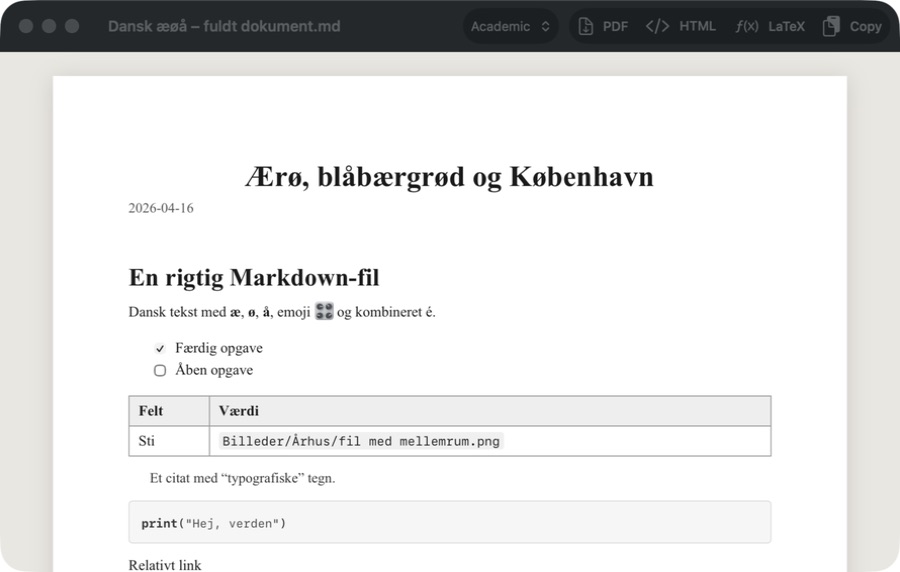
EUR 12 once · no subscription · no account · macOS 14+ · Apple silicon or Intel
Comparison
Which Markdown-to-PDF method should you use?
- Print to PDFFree and immediate; layout depends on the app's preview
- PandocFree and highly automatable; requires command-line setup and a PDF engine
- PX7 TypesetVisual preview and page-aware themes; EUR 12 after the trial
Use Print to PDF when the preview already looks right. Use Pandoc when the conversion belongs in a script or needs custom templates. Use Typeset when you want to inspect the final layout and export a polished PDF without assembling a toolchain.
Quick answers
Markdown to PDF on Mac
Can a Mac convert Markdown to PDF without an online service?
Yes. Render the local Markdown file, press Command-P and choose Save as PDF. Pandoc and native Mac exporters can also work entirely on the Mac.
Can Preview open a Markdown file directly?
No. First render the Markdown in a compatible app or convert it to HTML or PDF; Preview can then open the PDF output.
Does Pandoc need LaTeX to create a PDF?
Pandoc uses LaTeX by default for PDF output, so that route needs a LaTeX engine. Pandoc also supports other PDF engines through its command-line options.
How do I stop tables and code blocks splitting across PDF pages?
Use a print stylesheet or exporter with page-break rules for those elements. PX7 Typeset applies those rules to tables and code blocks in its paginated PDF output.
PX7 Digital makes PX7 Markdown Typeset. The free system method and open-source Pandoc route are listed first because either may be all you need. Apple and Pandoc instructions were checked on 27 August 2026. Something out of date? Tell us.